A simple "quiz on Javascript" submitted through a Chatbot 🤓
You can use this chatbot to submit a simple test to your audience.
This test makes wide use of "attributes" and "conditions" (aka the "flow").
Quiz Design
The test uses "attributes". Attributes are a great way to manage your chatbot flow, and they are especially useful to store some in-flow data that can be also used later to manage your flow with conditions (you can use your attributes in any actions).
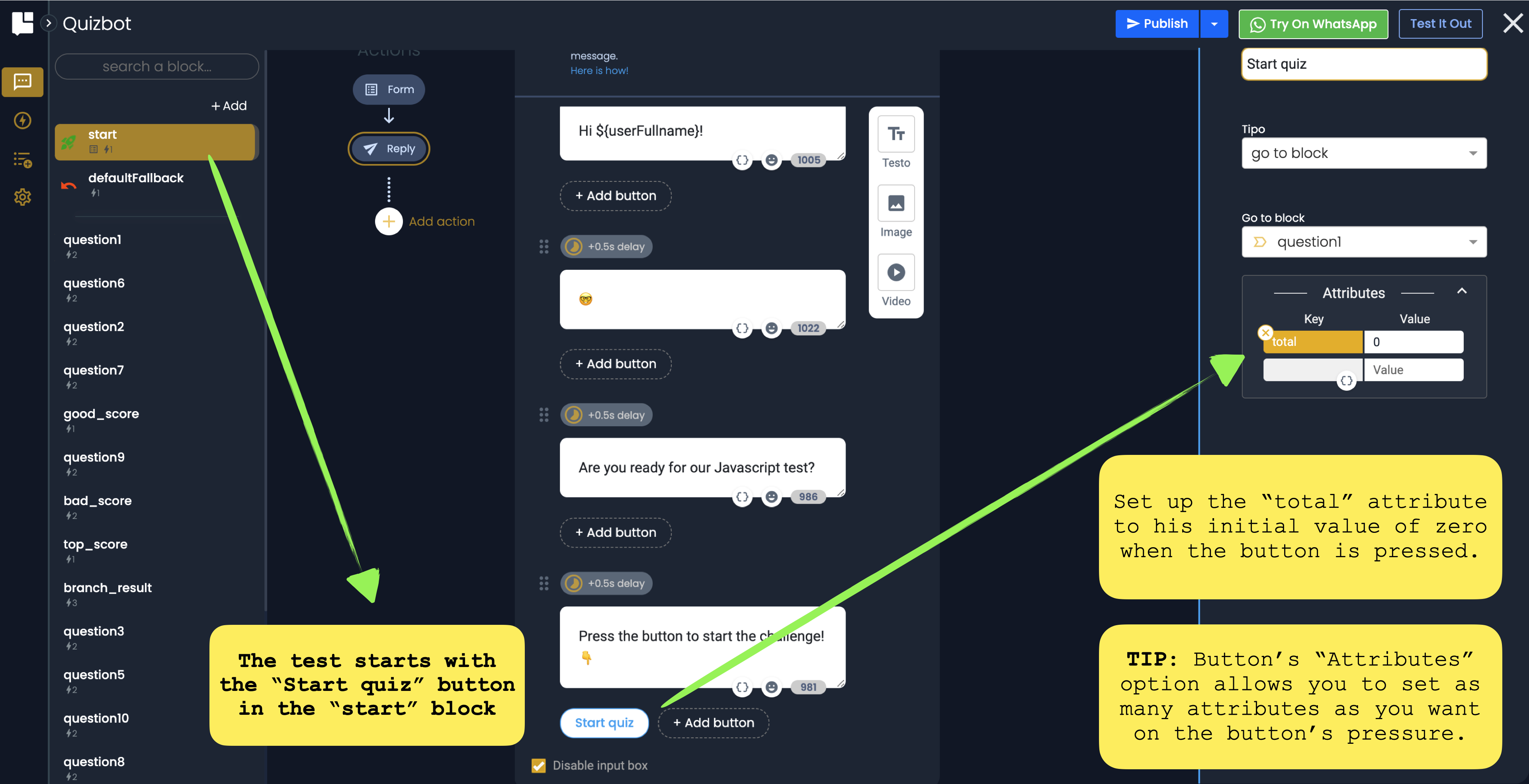
The test starts with the “Start quiz” button in the “start” block. Set up the total attribute to his initial value of zero when the button is pressed.
TIP: Button’s “Attributes” option allows you to set up as many attributes as you want on a single button pressure.
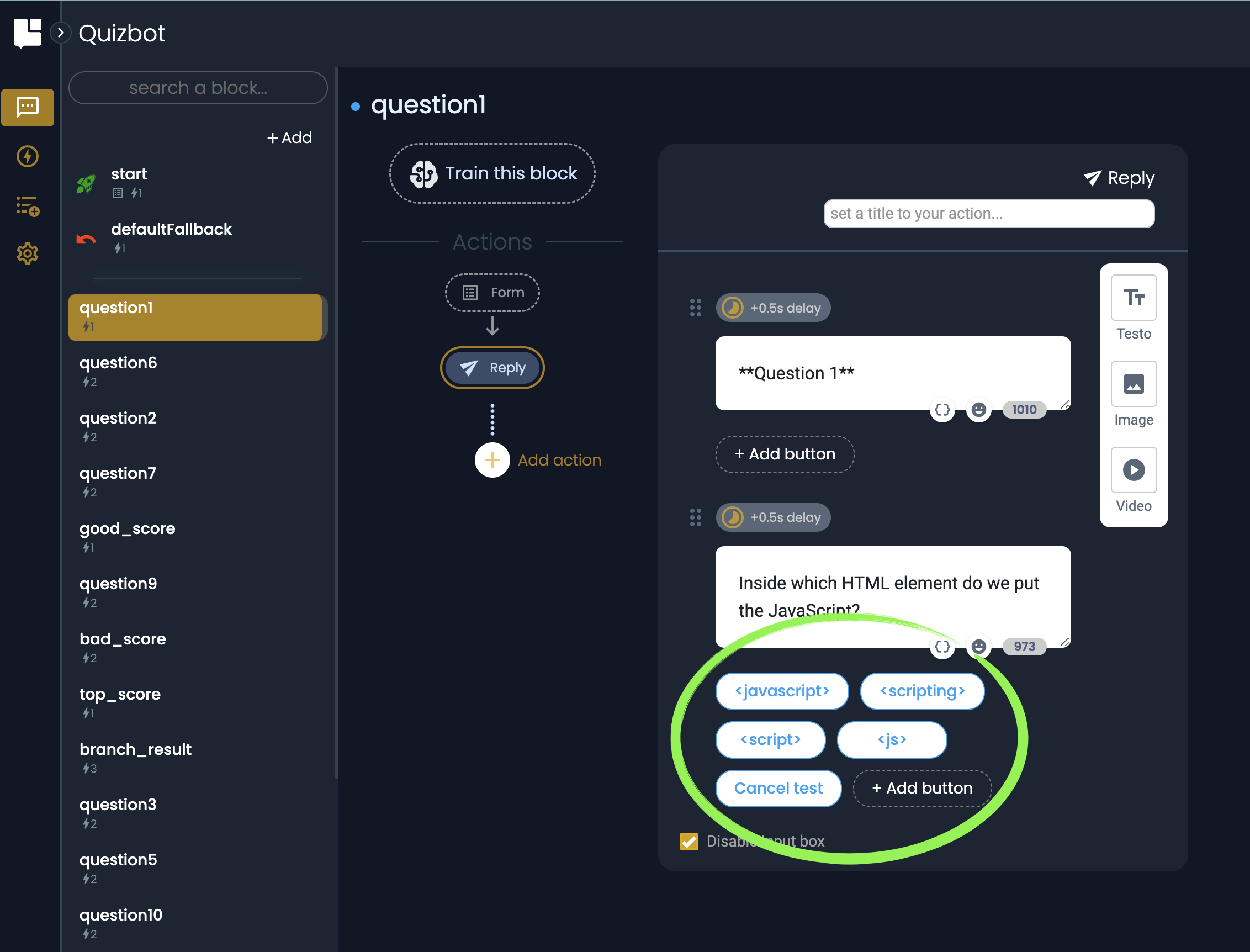
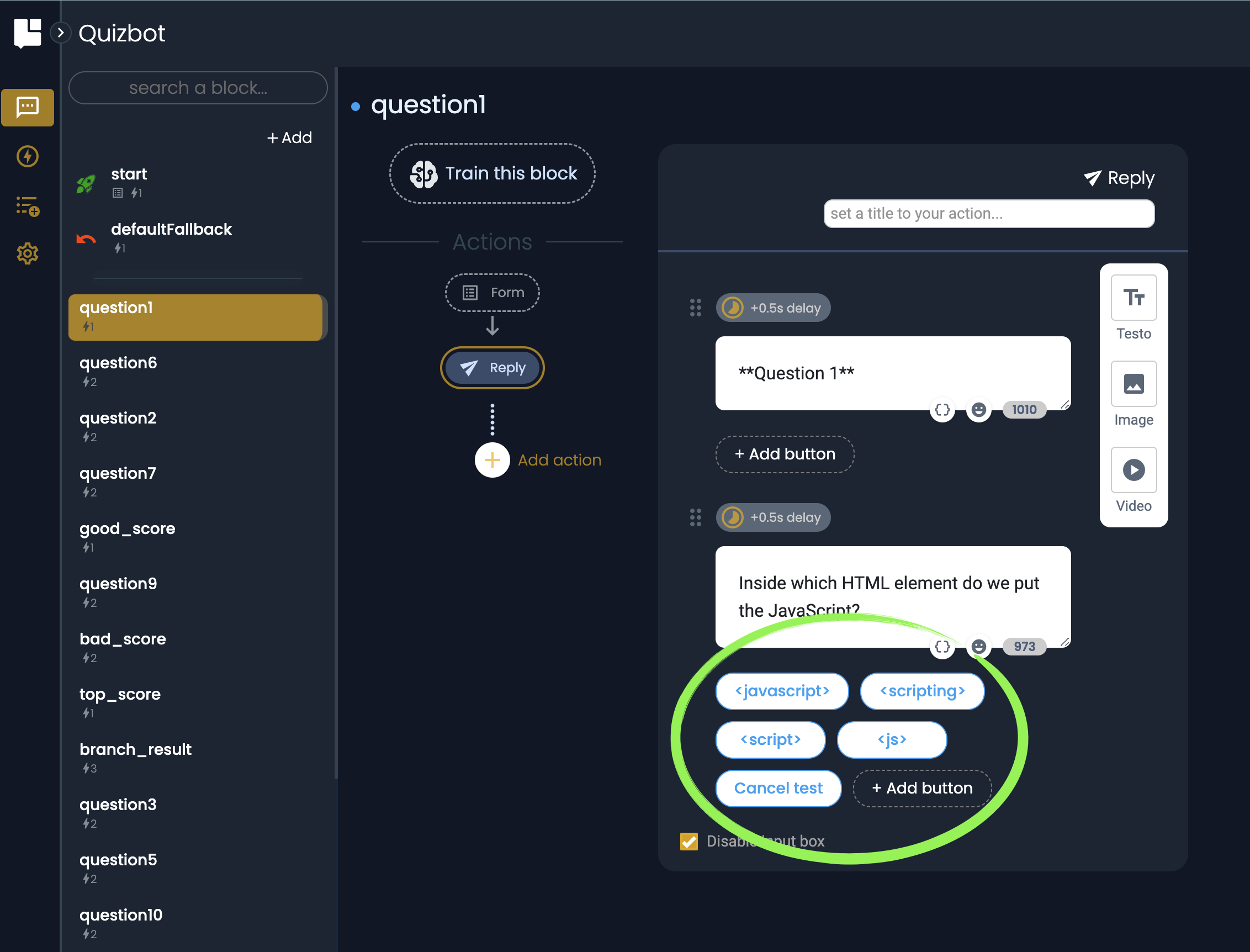
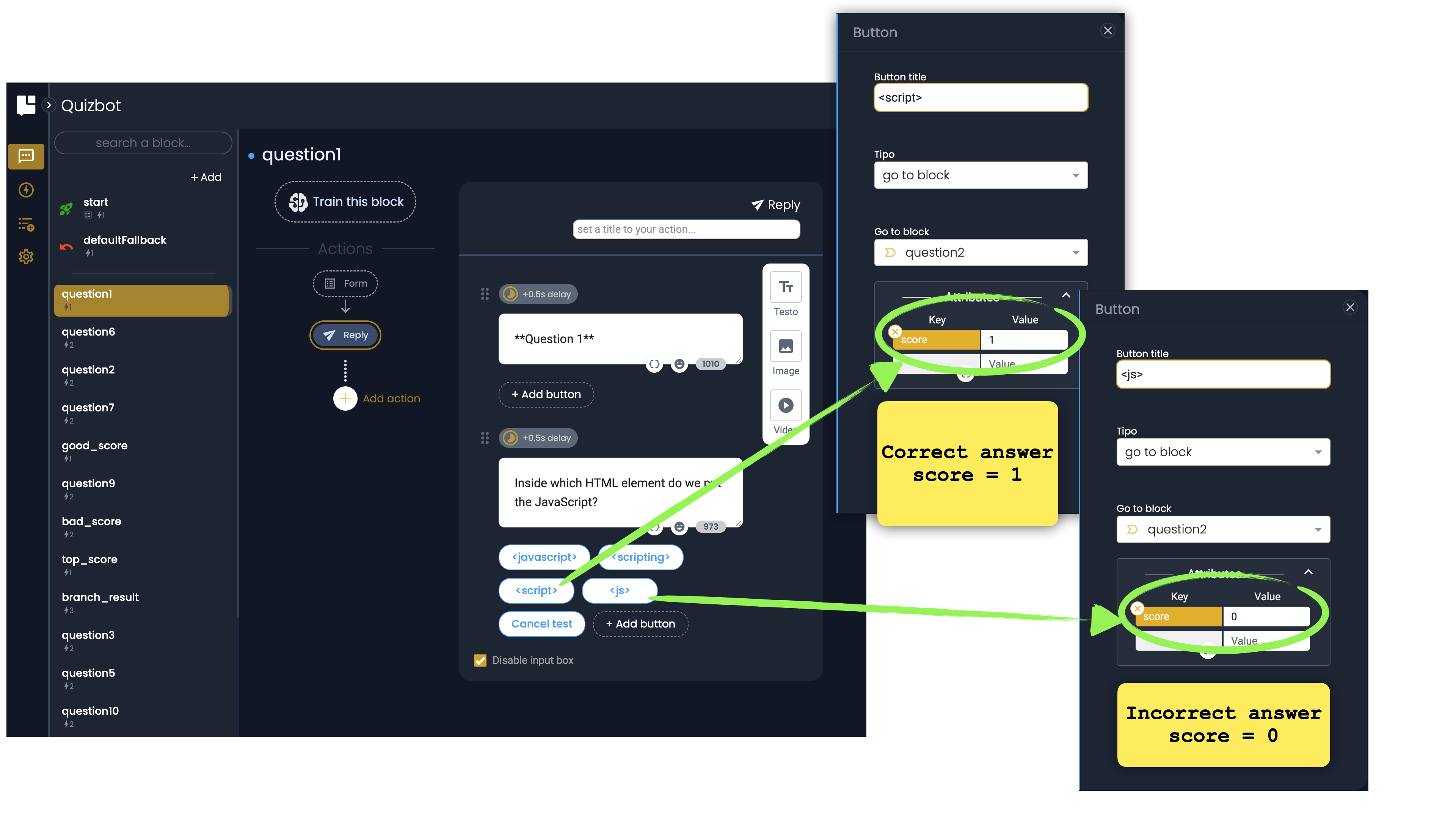
The first question (question1 block) simply proposes four possible replies (plus a "Cancel test" option), where only one is true.
We always use the Button's Attributes feature to set the current test score. Every time the user pressed the correct reply's botton the total score increases of the corresponding amount. When an incorrect reply is selected the score is set to zero.
Now move to question2. From now on, until the last question, each question will have the same identical structure.
On each question we simply increase the "total" score adding the current reply's score coming from the previuos button press.
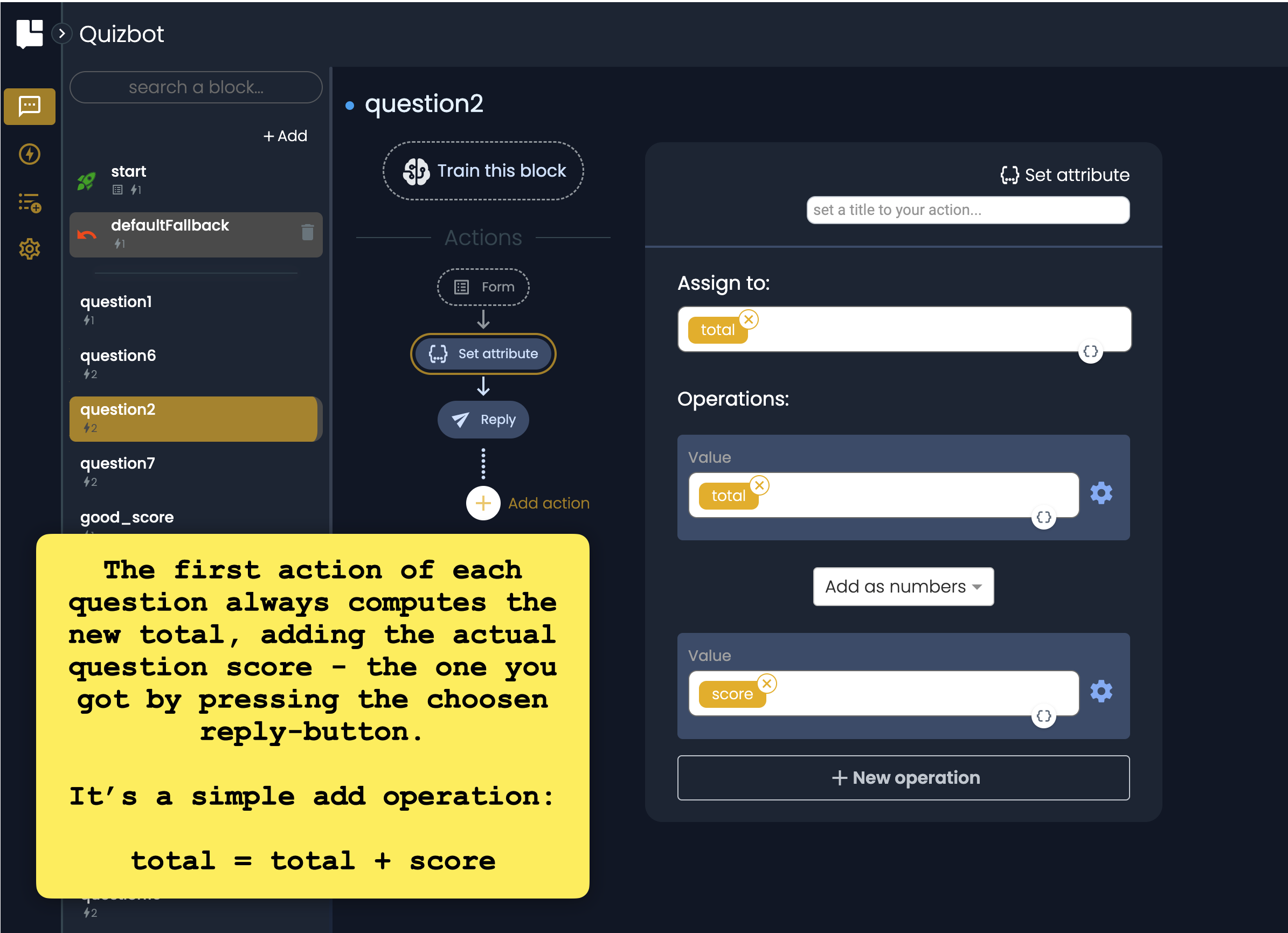
The first action of each question always computes the new total, adding the actual question score - the one you got by pressing the choosen reply-button.
After all, it’s a simple add operation:
total = total + score
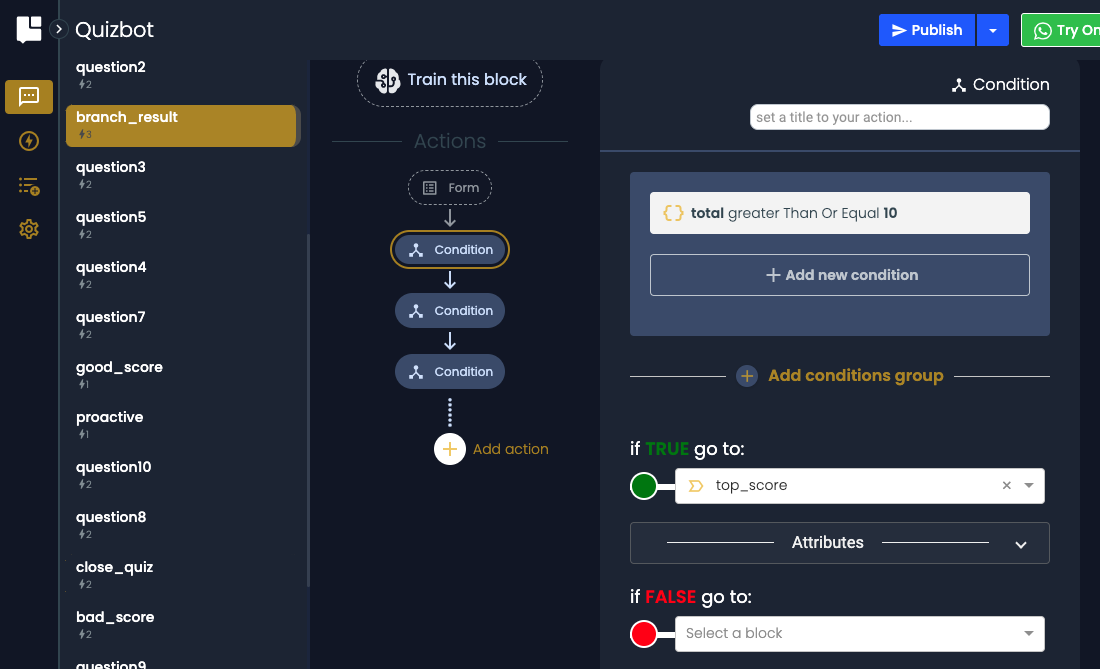
On the last question, as soon as the test comes to the end, the chatbot will branch on specific replies, based on your total score.
Take a look at the branh_result block. It's made by threee condition-actions. Each action will move to the reply specific for the score.
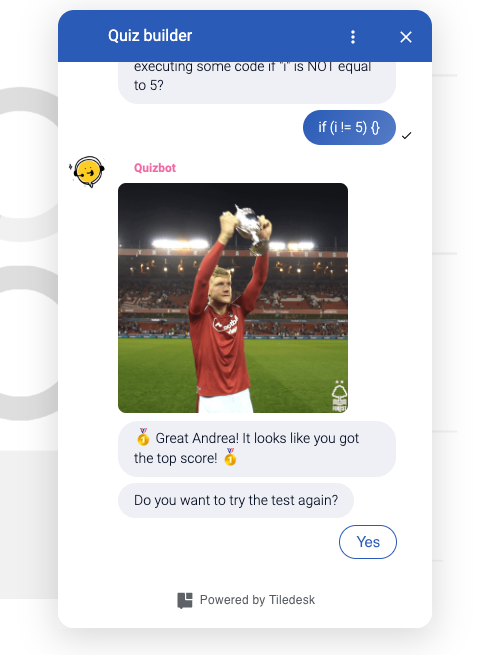
And the result...
Proactive rules
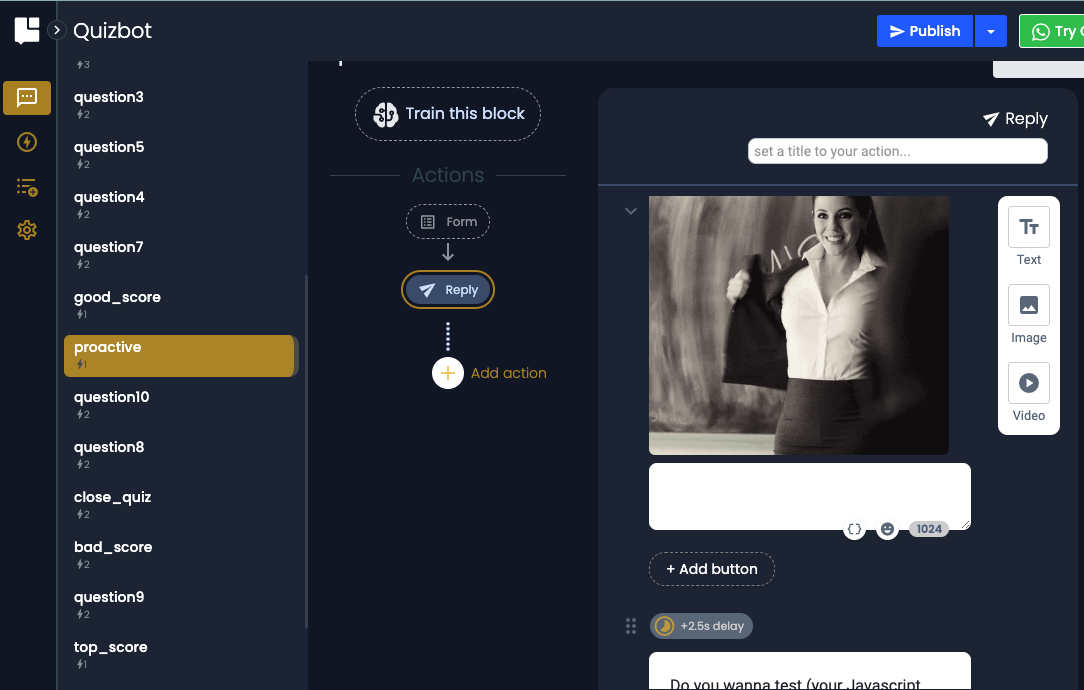
We also created a rule to proactively engage your visitors to open and complete the test.
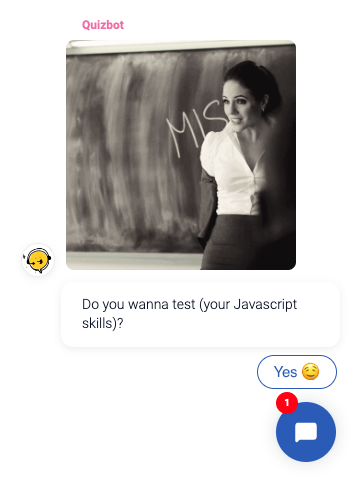
Setup your proactive rule in the rules section:
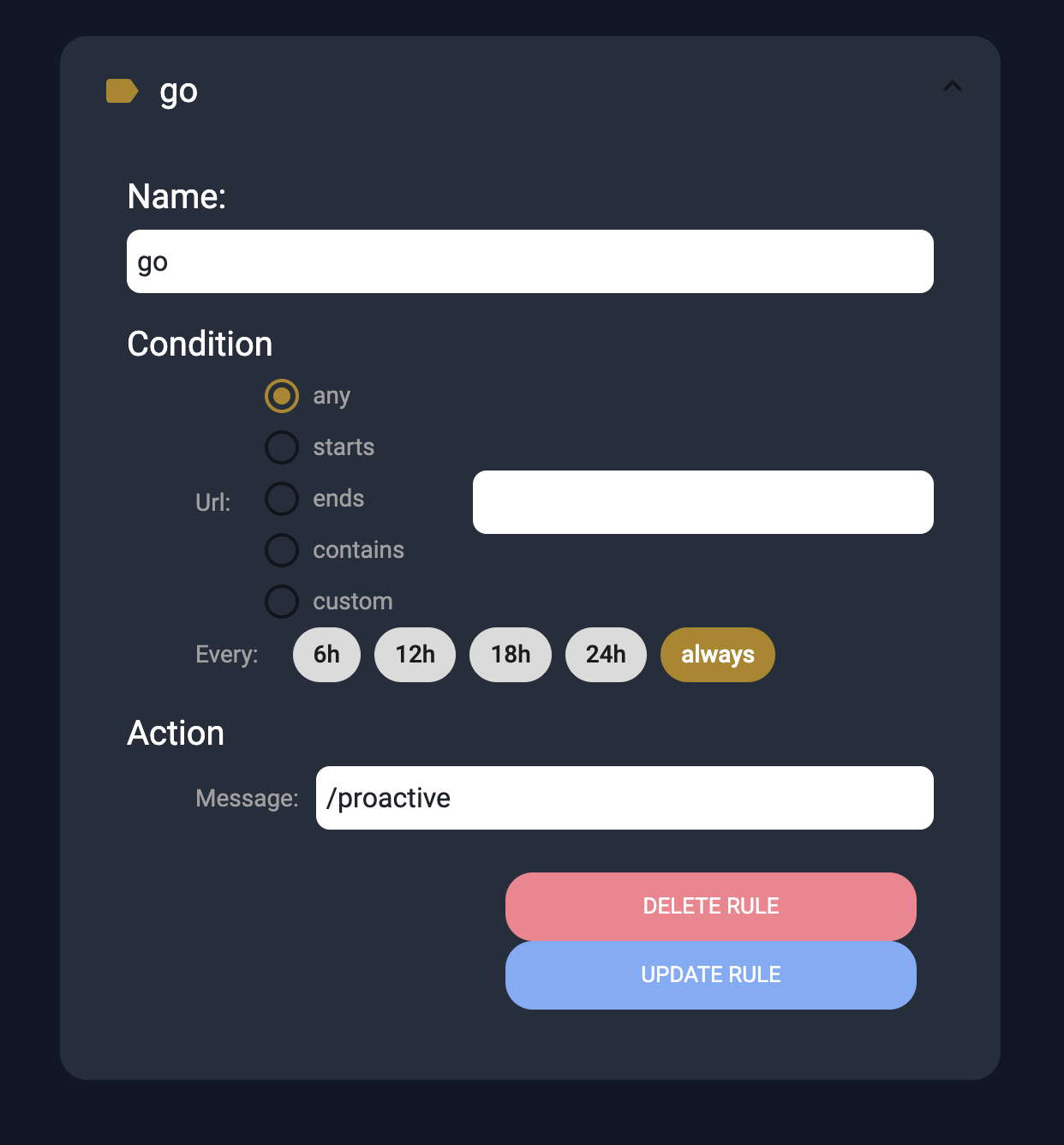
This rule simply states that whatever link you open the proactive block will be invoked:
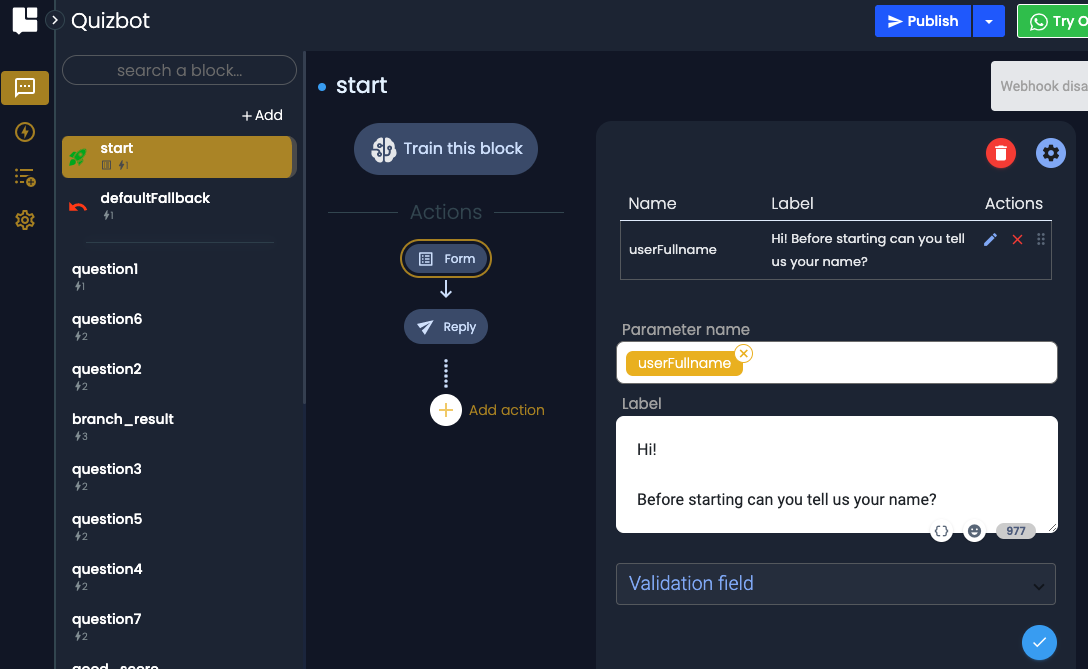
Ask visitor name
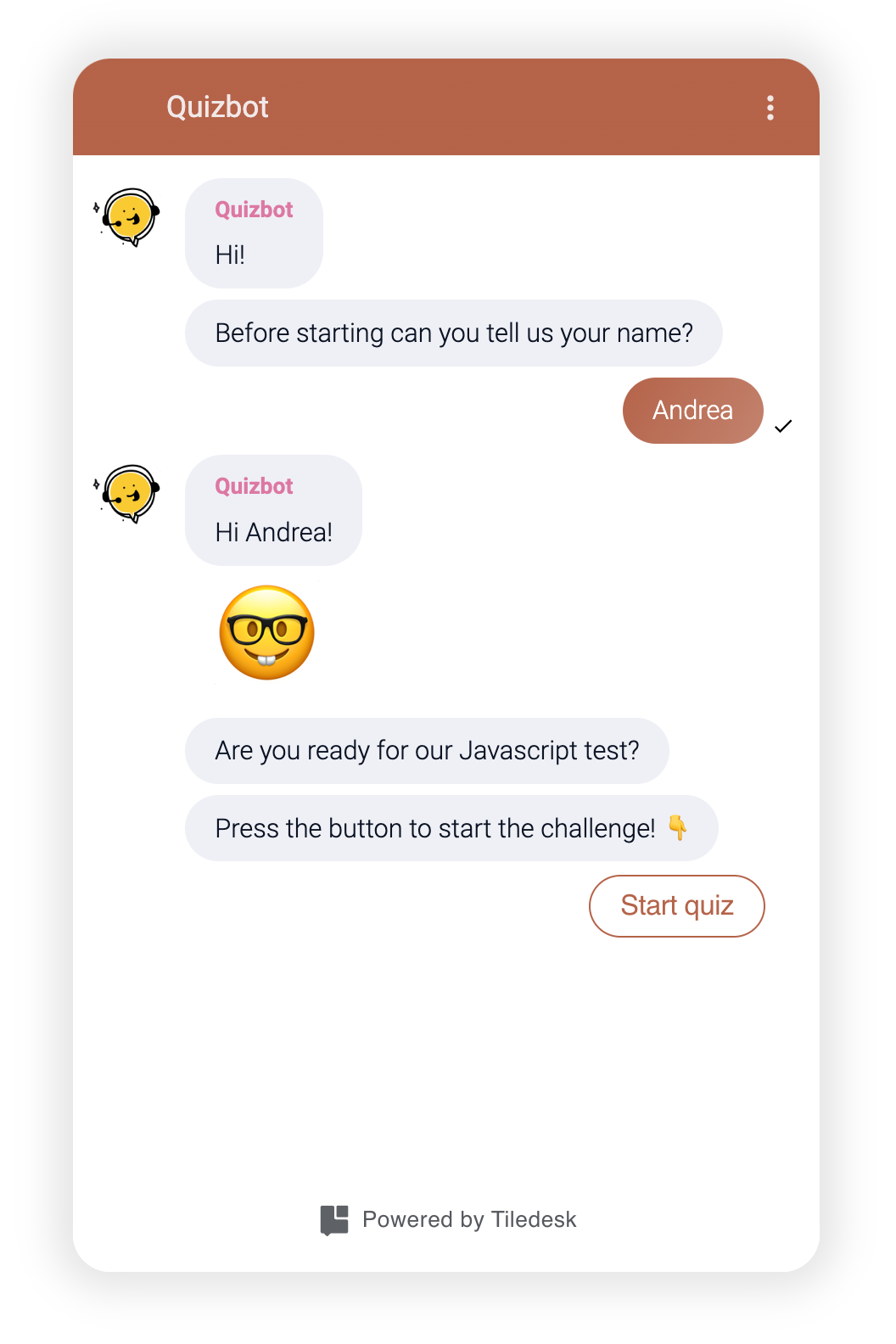
We also used "forms" to ask your visitor's data (his name). You can find the Form setup in the "start" block.
Whatsapp
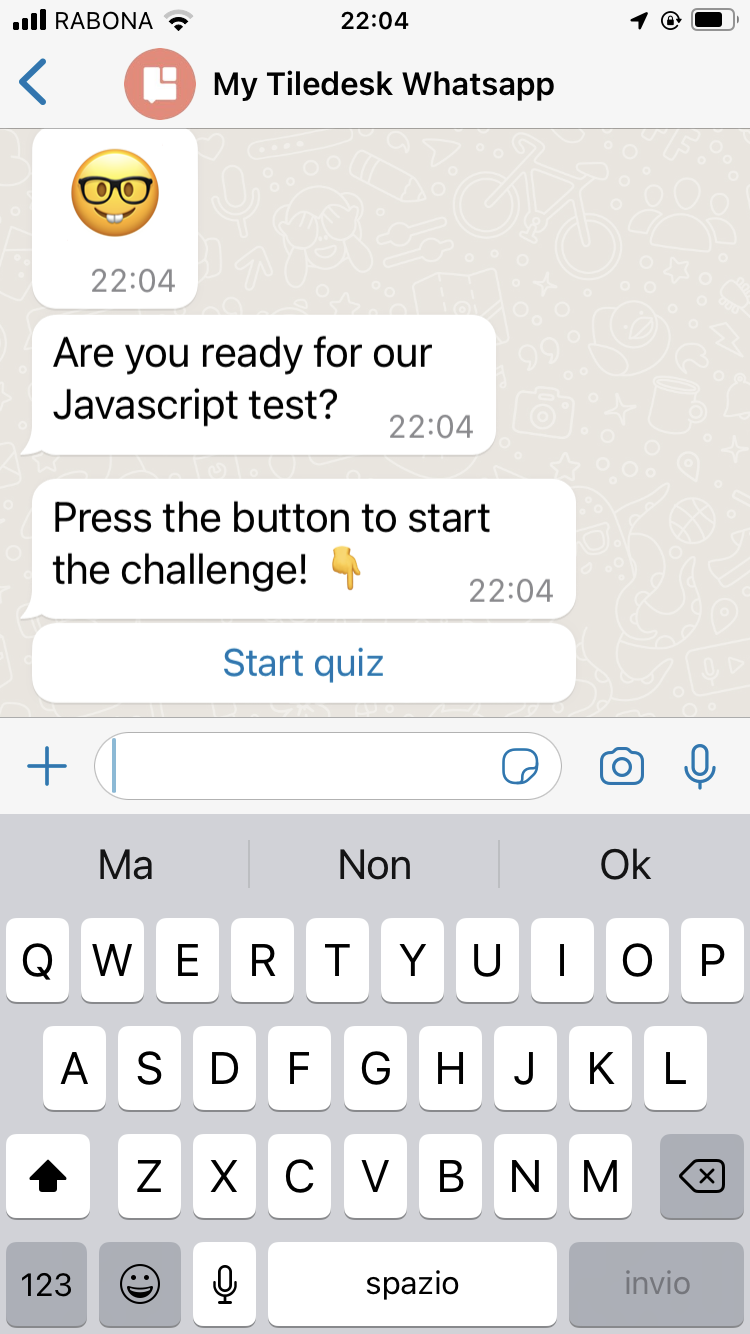
It also works on Whatsapp!
Just push the green button et...voilà, it's ready to run on Whatsapp!
Conclusions
Feel free to import and modify this test as you prefer.
Let us know if you have some questions about this template writing a message to andrea@tiledesk.com